iPhone Advice

iPhone tips, tricks, news, resources and how to's

  • Apps
  • Download
  • iPad
  • iPhone
  • Mac

Quickly disable “Press Home to Unlock” iPhone Feature on iOS 10

September 14, 2016 by iPhoneAdvice Leave a Comment

press-home-to-unlock

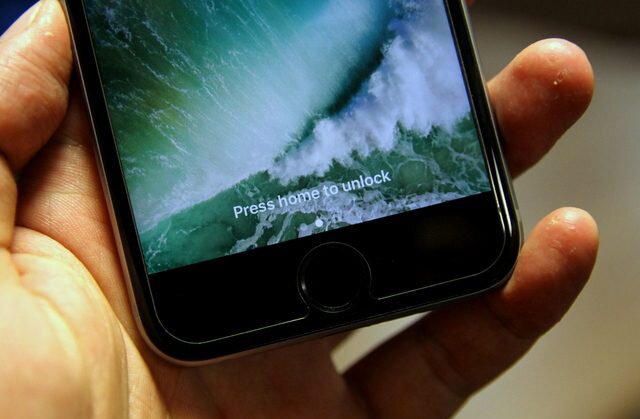
One of the new features of the new iOS 10 is that it now requires you to press home to unlock the phone, moving away from the direct press on fingerprint to unlock. This can be an annoying experience especially if you have to do it again and again and therefore we have a surprise for the users which will allow them to disable them on the fly!

Use fingerprint to unlock

Previously, all you had to do was lay any of your fingertips registered with Touch ID to unlock the device. Placing your fingertip on the Touch ID sensor was enough to unlock the device, no press of the Home button needed.

The new method of pressing home to unlock is kind of annoying for most of us since it asks us to do the same thing, twice. So lets just get rid of it!

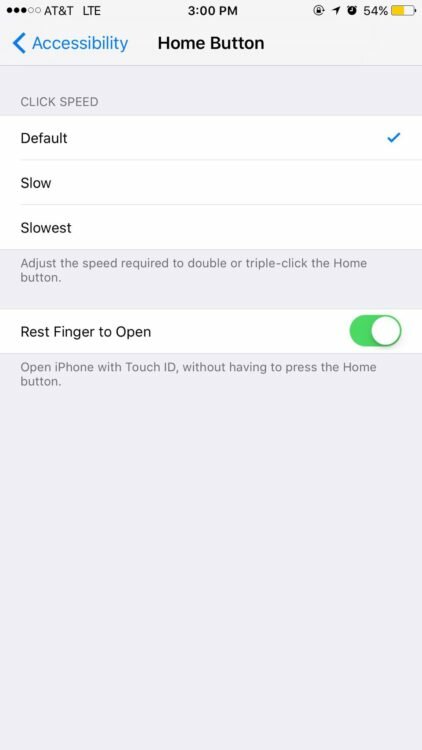
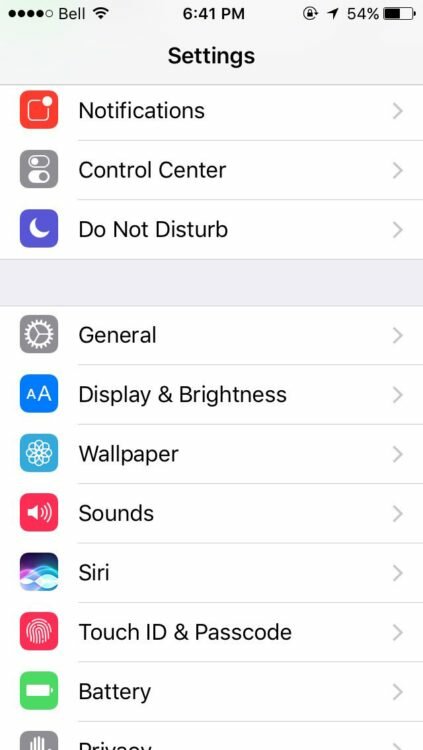
1) Launch the Settings app.

2) Go to General > Accessibility > Home Button.

3) Turn on the Rest Finger to Open toggle.

Going forward, you won’t have to press the Home button anymore in order to unlock your device. All you will have to do is to make sure the Lock screen is awake, then rest your finger on the Touch ID sensor (no need to press).

To revert back, simply follow these instructions again and turn off the toggle.
csrmqytweaalo4t  unknown-18

Filed Under: iPhone

Can’t see watchOS 3 for download on my Apple Watch? Try this fix

September 14, 2016 by iPhoneAdvice Leave a Comment

watchos3

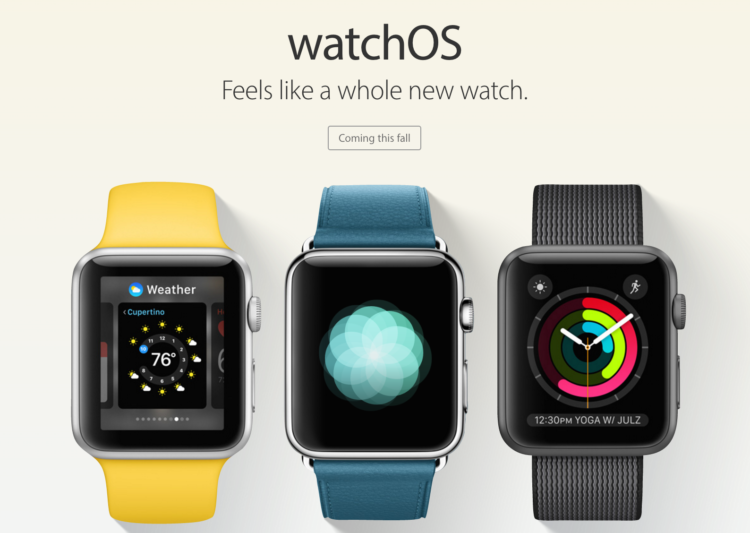
Apple officially released the new iOS 10 along with watchOS 3 update for Apple Watch but a lot of people have been facing the issue that they can’t see the new download on their Apple Watch to update to the new watchOS 3? Well – we have a fix!

Fix for watchOS 3 download

The thing is that if you have previously been using beta software, try deleting the beta profile (on each device, if installed on both) and then restarting both devices. That should fix the issue.

The new watchOS 3 comes with exciting new features:

  • Thanks to watchOS3, users can easily and smoothly switch among the new watch faces with edge gestures from either side of the display panel.
  • Thus far, some first-party apps, like Music, Home and Find My Friends already have their own watchOS 3 complication.
  • Users will also notice the addition of new weather complication that would come in handy with the temperature complication.
  • Additionally, watchOS 3 offers a new dock to house all of the recently used apps and user favorites for faster access.
  • Other new features that watchOS 3 brings with it include the long-rumored Breathe app and the enhanced Reminders, Find My Friends and Heart Rate apps.
  • The new Apple Watch operating system also comes with handwriting recognition support, so users can send texts by just writing on the screen of their timepiece.

Before downloading and installing the watchOS 3, users must ensure first that their paired iPhone device should already be running iOS 10. When the new mobile OS for the Apple smartphone is installed, users can download watchOS 3 by clicking on Software Update under the General settings.

Filed Under: Apple Watch

My iPhone shows “no service” – Here’s a fix for this issue!

June 10, 2016 by iPhoneAdvice Leave a Comment

iphone no service

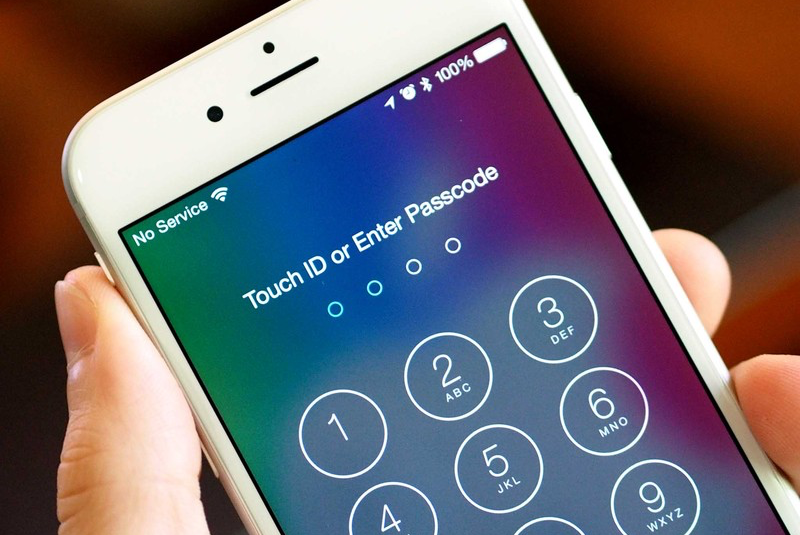
Are you experiencing an issue on your iPhone where it says “No Service” on the top left even after you have inserted the SIM properly? Well! that means you are in trouble and in this guide we will help you go through the process of understanding what might be causing this “No service” issue on the iPhone and how you can fix it.

What’s causing my iPhone to say: “No service”?

There are many reasons as to why your iPhone might be showing this so we will walk through a couple of steps to help you diagnose the issue. Please make sure to backup your phone data through iTunes or iCloud before you proceed with trying any of the solutions below!

1. Check with your Carrier

Most of the times its just an issue where the carrier has disabled your SIM from the backend and you just don’t know it and that’s causing the iPhone to show “No service” even though the SIM has been inserted properly. There could be many reasons why your account might have been disabled e.g. over-billing, late payment, compliance failure etc.

Its better to call and check with your carrier right away just to make sure that your account is fully functional and working properly.

2. Take out and re-insert the SIM

iphone-4-right-side-sim-tray

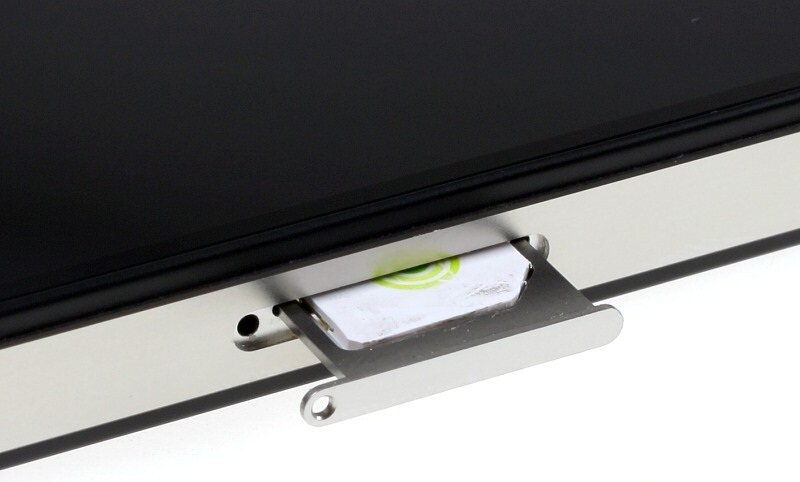
The iPhone 5 and above run on a special kind of SIM which is known as a nano SIM and sometimes its not inserted corrected into the SIM tray which causes it to show the “No service” issue.

Well – you can try to simply take out the SIM from the SIM tray and then clean it with a piece of cloth and re-insert it. In some cases it is also recommended that you take out the SIM, restart the iPhone and then re-insert it.

Give it a try and see if that fixes your issue or not.

3. Check Cellular Settings on your iPhone

First, go to the Settings app and go to the Carrier section and disable “Automatic” mode and then manually choose the Carrier and see if this fixes your issue.

Otherwise, go to the Cellular section in the Settings app and try to go to Settings > Cellular, and try to toggle Cellular Data on and off to see if that fixes the issue.

4. Reset the Networking Settings

While this one is not recommended, you could try setting the networking settings to factory default by going to Settings > General > Reset. This will reset everything and be warned as this will also forget all Wi-Fi passwords but this will also most likely fix any Wi-Fi or Cellular issues. This will not erase any content from your iPhone so you don’t need to worry about that!

Those are some of the tricks to help you fix this issue – let us know in the comments if they were of help to you.

Filed Under: iPhone

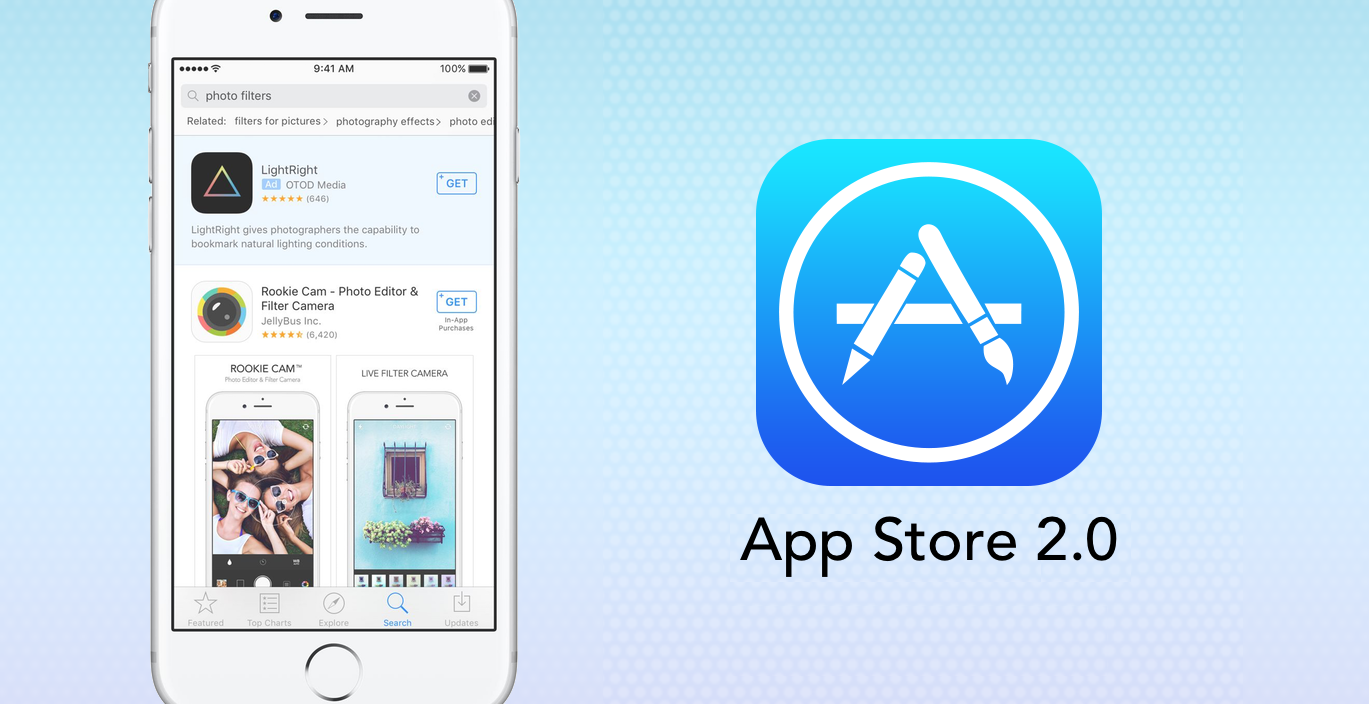
App Store 2.0 is coming with subscription and search result ads

June 10, 2016 by iPhoneAdvice Leave a Comment

App-Store-2

There’s a big change coming to the iPhone and it’s the new App Store 2.0!

In a rare interview with Verge, Phil Schiller, Apple’s senior vice president of worldwide marketing, gave a sneak preview into the new developer-friendly features coming to the iPhone soon that will be revealed at the annual Apple Worldwide Developers Conference set to take place from June 13-17 at the Bill Graham Civic Auditorium in San Francisco.

New subscription model

According to Phil, a new revenue sharing model will be introduced according to which Apple will reduce its cut by 15% for developers who have been able to maintain subscriptions with a customer for more than a year. This means that as a developer, you will be able to generate 85% of the revenue generated through the App Store through customers who have subscribed for more than a year. Also, Apple will open up its subscription model to all categories including games.

Search result ads

The other big change to the App Store is that it will allow developers to pay to show ads for search results. According to Phil, “We’ve thought about how to carefully do it in a way that, first and foremost, customers will be happy with…[and that it is] fair to developers, and fair for indie developers, too.”

Its hard to say what kind of an impact search result ads will have on the App Store but we already have a feeling that the move won’t be very welcome by new app developers who rely on organic marketing to have their app discovered and don’t have big budgets to spend on advertising.

However, the new subscription and revenue sharing model is definitely a good news for all the developers out there and definitely for those who aim to create long-term business model for their apps since mostly consumers have reached a saturation point when it comes to apps.

Apple has already begun to speed up app review times for most apps to the point where 50 percent of submitted apps are now reviewed in 24 hours, and 90 percent are reviewed within 48 hours.

We’re hoping to get more details about all of these new features at the Annual Worldwide Developers Conference in a few days!

Filed Under: News

Now its possible to run Android on iPhone

June 8, 2016 by iPhoneAdvice Leave a Comment

https://www.youtube.com/watch?v=a1ivaxlbpmw

Always wanted to run Android on iPhone? Now there’s a case that’s let you do that. The case has been designed by Nick Lee who has a reputation of hacking around with Apple products and installing weird and whacky operating systems on these devices e.g. an Apple Watch running Windows 95.

This time around Nick has gone a step ahead and has actually used the Android Open Source Project (AOSP) to create a custom version of Android Marshmallow that runs on an iPhone when attached through the lightening connector.

However, there’s a catch. To run Android on your iPhone, you will need to attach a special, 3D printed smartphone case to make it all work. The case contains the special circuitry such as the board, the battery, a boost converter and a resistor which makes the whole package look quite odd and bulky but what’s amazing about this case is that it gives your phone access to super ports such as HDMI, USB as well as a SD card slot.

As you can see in the YouTube video, the way it works is that you slip your phone in the custom designed case and fire up the Tendigi app on your iPhone and as soon as you see the “waiting for case…” prompt, you connect the lightning connector from the case to the iPhone and you will see Android running on your screen.

We have to say this is quite a sound implementation of Android on iPhone and one of the best that we have seen. Although we we have our doubts when it comes to practical application of such an implementation, we have to give Nick all the credit for thinking out of the box and going ahead and trying something as crazy as this and we hope that someone out there will come up with a use for this eventually.

Source: Tendigi

Filed Under: News

Recent Posts

  • Quickly disable “Press Home to Unlock” iPhone Feature on iOS 10

    Quickly disable “Press Home to Unlock” iPhone Feature on iOS 10

    September 14, 2016
  • Can’t see watchOS 3 for download on my Apple Watch? Try this fix

    Can’t see watchOS 3 for download on my Apple Watch? Try this fix

    September 14, 2016
  • My iPhone shows “no service” – Here’s a fix for this issue!

    My iPhone shows “no service” – Here’s a fix for this issue!

    June 10, 2016
  • App Store 2.0 is coming with subscription and search result ads

    App Store 2.0 is coming with subscription and search result ads

    June 10, 2016

Disclaimer

This website is not owned by, is not licensed by nor is a subsidiary of Apple Inc. iPhone is a trademark of Apple Inc. The content of this website is not supplied or reviewed by Apple Inc. All articles, images, logos and trademarks in this site are property of their respective owners.

Copyright © 2016 · Genesis Sandbox on Genesis Framework · WordPress · Log in