iPhone Advice

iPhone tips, tricks, news, resources and how to's

  • Apps
  • Download
  • iPad
  • iPhone
  • Mac

Quickly disable “Press Home to Unlock” iPhone Feature on iOS 10

September 14, 2016 by iPhoneAdvice Leave a Comment

press-home-to-unlock

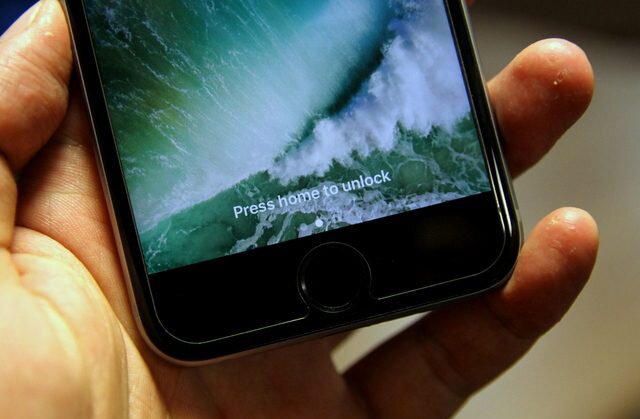
One of the new features of the new iOS 10 is that it now requires you to press home to unlock the phone, moving away from the direct press on fingerprint to unlock. This can be an annoying experience especially if you have to do it again and again and therefore we have a surprise for the users which will allow them to disable them on the fly!

Use fingerprint to unlock

Previously, all you had to do was lay any of your fingertips registered with Touch ID to unlock the device. Placing your fingertip on the Touch ID sensor was enough to unlock the device, no press of the Home button needed.

The new method of pressing home to unlock is kind of annoying for most of us since it asks us to do the same thing, twice. So lets just get rid of it!

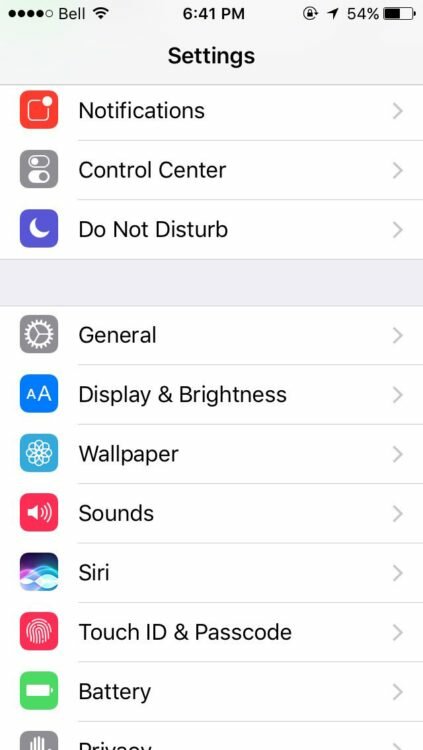
1) Launch the Settings app.

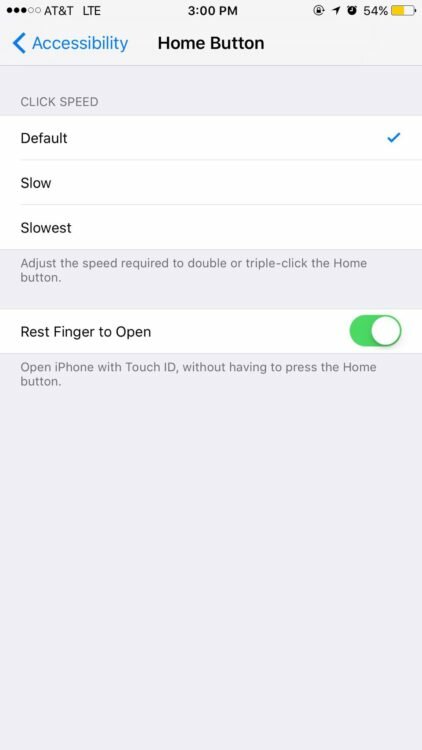
2) Go to General > Accessibility > Home Button.

3) Turn on the Rest Finger to Open toggle.

Going forward, you won’t have to press the Home button anymore in order to unlock your device. All you will have to do is to make sure the Lock screen is awake, then rest your finger on the Touch ID sensor (no need to press).

To revert back, simply follow these instructions again and turn off the toggle.
csrmqytweaalo4t  unknown-18

Filed Under: iPhone

My iPhone shows “no service” – Here’s a fix for this issue!

June 10, 2016 by iPhoneAdvice Leave a Comment

iphone no service

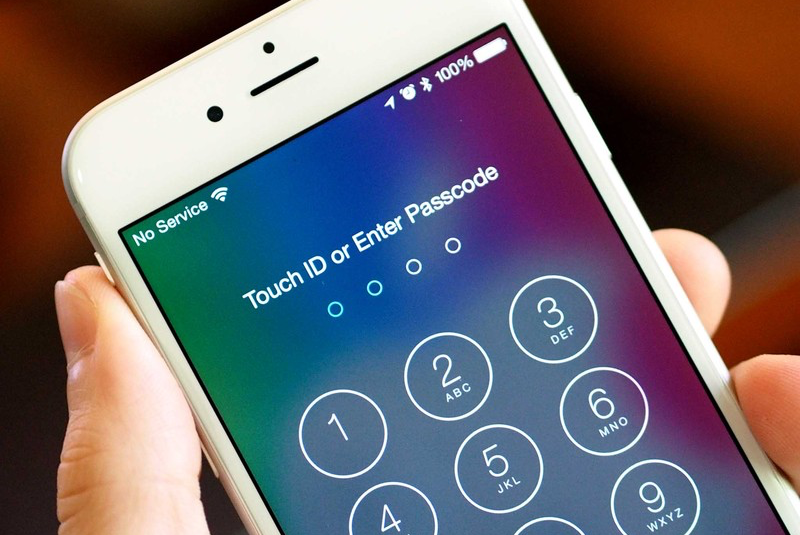
Are you experiencing an issue on your iPhone where it says “No Service” on the top left even after you have inserted the SIM properly? Well! that means you are in trouble and in this guide we will help you go through the process of understanding what might be causing this “No service” issue on the iPhone and how you can fix it.

What’s causing my iPhone to say: “No service”?

There are many reasons as to why your iPhone might be showing this so we will walk through a couple of steps to help you diagnose the issue. Please make sure to backup your phone data through iTunes or iCloud before you proceed with trying any of the solutions below!

1. Check with your Carrier

Most of the times its just an issue where the carrier has disabled your SIM from the backend and you just don’t know it and that’s causing the iPhone to show “No service” even though the SIM has been inserted properly. There could be many reasons why your account might have been disabled e.g. over-billing, late payment, compliance failure etc.

Its better to call and check with your carrier right away just to make sure that your account is fully functional and working properly.

2. Take out and re-insert the SIM

iphone-4-right-side-sim-tray

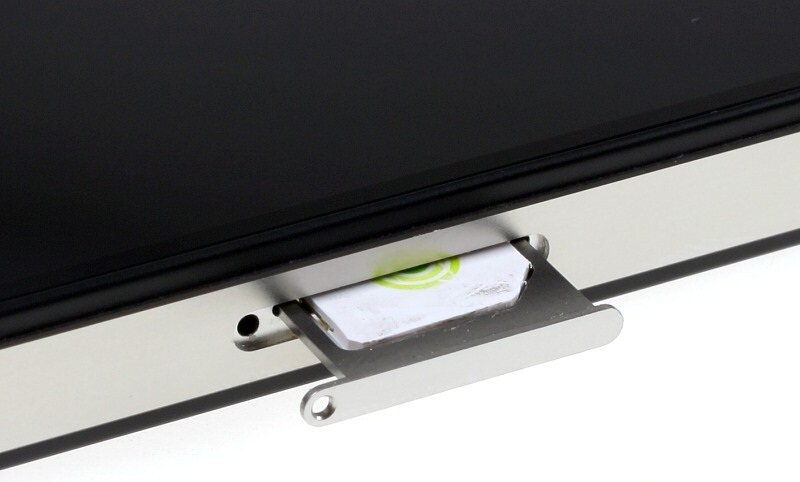
The iPhone 5 and above run on a special kind of SIM which is known as a nano SIM and sometimes its not inserted corrected into the SIM tray which causes it to show the “No service” issue.

Well – you can try to simply take out the SIM from the SIM tray and then clean it with a piece of cloth and re-insert it. In some cases it is also recommended that you take out the SIM, restart the iPhone and then re-insert it.

Give it a try and see if that fixes your issue or not.

3. Check Cellular Settings on your iPhone

First, go to the Settings app and go to the Carrier section and disable “Automatic” mode and then manually choose the Carrier and see if this fixes your issue.

Otherwise, go to the Cellular section in the Settings app and try to go to Settings > Cellular, and try to toggle Cellular Data on and off to see if that fixes the issue.

4. Reset the Networking Settings

While this one is not recommended, you could try setting the networking settings to factory default by going to Settings > General > Reset. This will reset everything and be warned as this will also forget all Wi-Fi passwords but this will also most likely fix any Wi-Fi or Cellular issues. This will not erase any content from your iPhone so you don’t need to worry about that!

Those are some of the tricks to help you fix this issue – let us know in the comments if they were of help to you.

Filed Under: iPhone

Recent Posts

  • Quickly disable “Press Home to Unlock” iPhone Feature on iOS 10

    Quickly disable “Press Home to Unlock” iPhone Feature on iOS 10

    September 14, 2016
  • Can’t see watchOS 3 for download on my Apple Watch? Try this fix

    Can’t see watchOS 3 for download on my Apple Watch? Try this fix

    September 14, 2016
  • App Store 2.0 is coming with subscription and search result ads

    App Store 2.0 is coming with subscription and search result ads

    June 10, 2016
  • Now its possible to run Android on iPhone

    June 8, 2016

Disclaimer

This website is not owned by, is not licensed by nor is a subsidiary of Apple Inc. iPhone is a trademark of Apple Inc. The content of this website is not supplied or reviewed by Apple Inc. All articles, images, logos and trademarks in this site are property of their respective owners.

Copyright © 2016 · Genesis Sandbox on Genesis Framework · WordPress · Log in